Getting Business Central data into a lake used to be the hard part. Now the hard part is knowing it is still arriving.
That shift sounds small. It changes what the job looks like.
This is the second of two posts on the native Business Central integration with Microsoft Fabric in 2026 release wave 2. Part 1 explained how the data moves and what it costs, and the hands-on walkthrough covered the setup screen by screen. This post is about what happens after the data lands: the Power BI apps on Fabric, the two kinds of monitoring logs, permissions, and the habits I would put in place before anyone relies on it.
The usual caveat applies. This is a production-ready preview, and it was available on my 29.1 sandbox when I set it up. What follows is based on the Business Central and Fabric documentation on Learn, my own setup, and what Microsoft demonstrated in the Launch Edition session.
The Power BI apps, rebuilt on Fabric
Microsoft has invested heavily in Power BI apps for Business Central over the last few releases. There are nine of them, covering Finance, Inventory, Inventory Valuation, Manufacturing, Projects, Purchasing, Sales, Subscription Billing and Sustainability. Until now they have all sourced their data from Business Central APIs.
As part of this release, Microsoft has converted them to work on the Fabric back end, in two versions:
- Single company. Similar to the apps you know today, including the ones designed to be embedded in Business Central.
- Multi-company. The same app, but able to show data across several companies at once.
Microsoft said these will be available soon, either as code samples or on AppSource. The delivery route was not confirmed in the session, so watch the Learn analytics pages for the final answer.
The multi-company version is the one I would pay attention to. In the demo, the Finance report looked almost the same as the single-company version, with one addition: a company filter, and a header showing which companies are currently in scope. Anyone who has built a consolidated view across Business Central companies by appending API queries in Power Query will know how much work that one filter replaces.
The lineage view in Fabric shows how the pieces stack:
Mirrored database (Business Central tables in OneLake)
   ▼
SQL analytics endpoint
   ▼
Semantic model (Power BI)
   ▼
Report (for example, Finance multi-company)
That is also a good template for your own work. Microsoft’s apps are a starting point, and the source is available to learn from. Your customers will still have their own questions, and the same four layers apply.
A note on Direct Lake. Fabric supports Direct Lake mode over mirrored databases, which lets Power BI read the Delta tables in OneLake directly without importing or duplicating the data. I have not seen Microsoft state which storage mode the Fabric versions of the apps use. For your own models over mirrored Business Central data, Direct Lake is worth evaluating early, because it changes how fresh your reports can be without scheduled refreshes.
Building your own layer on top
The mirrored tables are raw Business Central tables. That is the right thing for Microsoft to ship, and it is not what a report builder should be working against directly.
What I have found works is a thin, deliberate layer between the mirrored database and the semantic models:
- Views in the SQL analytics endpoint that give tables and columns business-friendly names, filter out what reports never need, and present one stable contract. If something changes in the mirrored layer, you fix one view rather than ten reports.
- One place for company logic. If you mirror several companies, decide once how company is represented in your views, rather than leaving every report author to work it out.
- Cross-database joins for the context Business Central does not hold. Budgets in a warehouse, targets from a spreadsheet loaded into a lakehouse, data from other systems. Three-part naming in the SQL analytics endpoint makes this straightforward.
None of this is new data engineering. What is new is that you can start on it on day one, because the plumbing underneath is already done.
Monitoring from inside Business Central
This is the part administrators will live in.
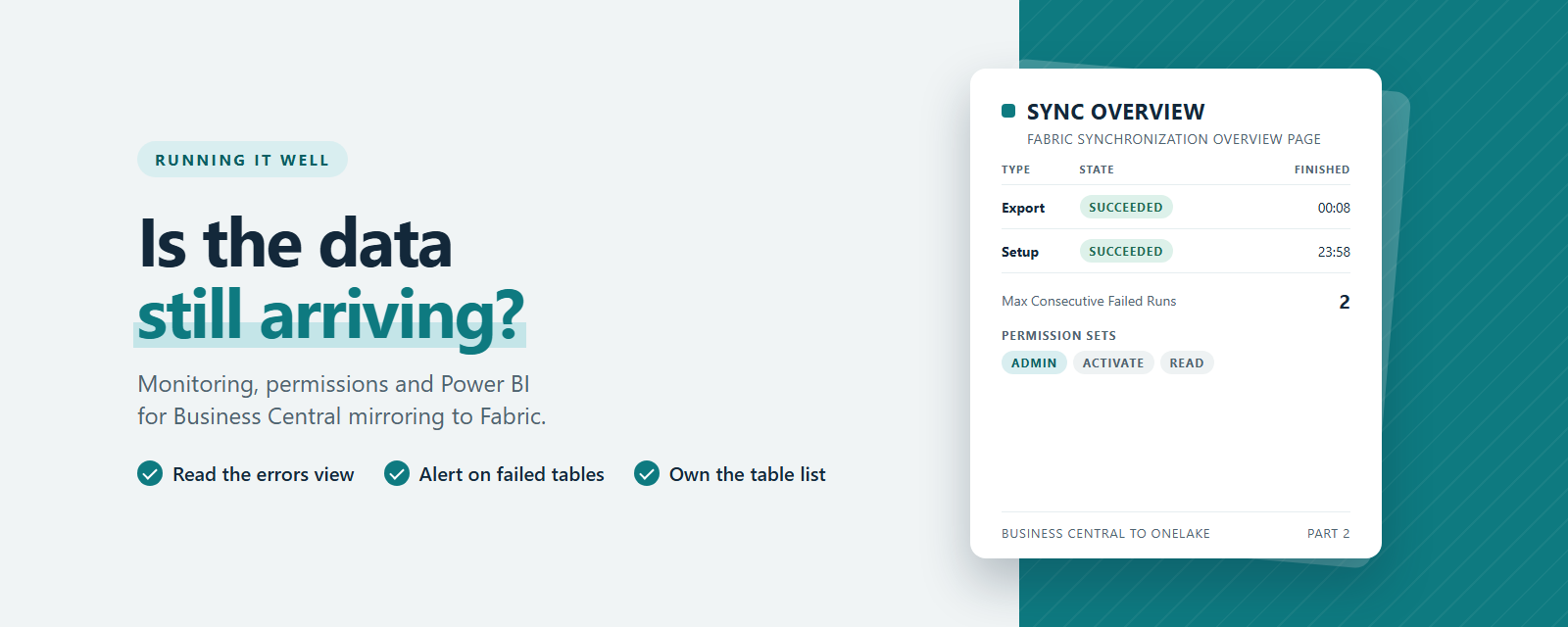
Business Central writes two types of logs for the synchronisation: an overview for each run and details for each company and table. Both are on the Monitoring menu of the Microsoft Fabric Mirroring Setup (Preview) page, as Fabric Synchronization Overview and Fabric Synchronization Details.
The overview gives you the run-level picture: the run type, its state, start and end times, and any error. There is an Errors view as well, so the “is anything broken” question is one click away.
The details go down to what actually happened per company and table: whether the run was an initial or incremental sync, how many records were inserted, updated and deleted, and the change-tracking watermarks. By default the page hides rows where nothing changed, which is useful for separating “the sync ran and nothing changed” from “the sync ran and moved data”. Be careful with that default when you are chasing a problem, because a row with an error can also have zero changes. Select Show rows with no changes before you conclude a table is fine.
In the demo, Microsoft opened the details page in analysis mode to show how you could build your own mini reports straight from the log: grouping by table, pivoting by status, filtering to a time window. If you already use analysis mode for ledger work, this will feel familiar.
The integration does not keep failing quietly forever. A setting called Max Consecutive Failed Runs decides how many runs in a row can fail before synchronisation stops, from one to five, with a default of two. That is a sensible guard, but once it trips nothing moves until someone fixes the cause and selects Start synchronization again, so someone needs to notice when it happens.
Monitoring from APIs and from Fabric
The monitoring data is also available through two read-only APIs in the app, fabricExportRuns for runs and fabricExportDetails for company and table results, under publisher microsoft, group fabric and version v1.0. If your operations team already pulls Business Central telemetry into a central dashboard, the synchronisation logs can go there too.
Microsoft also writes the logs into Fabric itself, into a separate logging schema that defaults to BusinessCentral_log, next to the business data. In the demo, that meant an export summary and export details queryable through the same SQL analytics endpoint as the business data. You can monitor the integration from the Fabric side, alongside everything else you run there.
Fabric adds its own layer on top, documented on Learn:
- The Monitor replication pane on the mirrored database shows a database-level status (Running, Running with warning, Stopping/Stopped, Failed, Paused) and, per table, the status, the cumulative rows replicated and the last completed time.
- Workspace monitoring, when enabled, ingests mirrored database execution logs into the
MirroredDatabaseTableExecutiontable in the workspace’s monitoring KQL database. From there you can build dashboards and alerts on replication failures and latency.
So you have three views of the same pipe. Business Central tells you what it sent. Fabric tells you what it merged. Workspace monitoring gives you the history and the alerting.
A monitoring routine I would put in place
Logs nobody reads are just storage. Here is the routine I would set up for any customer relying on this:
- A daily look at the errors view on the synchronisation overview in Business Central. Five minutes, every working day, by a named person.
- An alert on failed tables from Fabric workspace monitoring, so a table that has stopped replicating does not wait for the daily check.
- A freshness check on the tables the reports depend on. The “last completed” time per table in Fabric, or a simple query against the export summary, compared to an agreed threshold. If the G/L entry table has not moved in two hours on a working day, something is wrong.
- A capacity check. Pausing a capacity stops replication. Make sure whoever manages Fabric costs knows that mirroring depends on it.
- A post-upgrade check. After every Business Central update or extension upgrade that touches mirrored tables, confirm the affected tables are still running. Added fields should flow through. Changed field types are the case to watch, because open mirroring treats a type change as a breaking change for that table.
Permissions and governance
There are two sides to this, and both matter.
In Business Central there are three permission sets. MS Fabric Mirroring – Admin sets up the connection, chooses companies and tables, manages configuration packages and controls synchronisation. MS Fabric Mirroring – Activate can only activate, deactivate and reapply existing configuration packages. MS Fabric Mirroring – Read sees the overview and details without being able to change anything. Give Admin to very few people, and think about Activate almost as carefully. The person who can add a table to the configuration decides what data leaves Business Central for OneLake.
In Fabric, access to the workspace and the mirrored database decides who can read that data. Microsoft’s Fabric Export service principal needs Contributor on the workspace to write into it, and that is the only access it should have. Fabric lets you share a mirrored database with a user or group without giving them access to the whole workspace, and sharing it grants access to the SQL analytics endpoint. Row-level and object-level security are available for finer control.
Here is why this deserves more thought than usual. As covered in Part 1, you select tables, not fields. If a table holds salary data, personal data or bank details, every eligible field arrives in OneLake. The governance question is no longer “which fields does our export include”. It is “who can open this workspace, and what can they see when they do”.
My advice:
- Keep sensitive tables out of the configuration unless there is a real analytics need for them.
- Keep the mirrored database in a workspace with a small, named set of members.
- Give report consumers access to semantic models and reports, not to the mirrored database itself.
- Review the table list and the workspace membership together, at the same cadence.
Cost hygiene
Part 1 covered the cost model. Three operational points are worth repeating here, because they are the ones that surprise people:
- Replication is free, querying is not. Background replication compute does not consume capacity units. SQL queries, Power BI refreshes and Spark jobs over the mirrored data do. Size the capacity for the people using the data.
- Pausing is not free either. When a capacity is paused, replication stops and the mirrored data is charged as standard OneLake storage.
- Retention is short by default. New mirrored databases default to one day of Delta retention. That keeps storage low. If you want time travel on mirrored tables, raise it deliberately and accept the storage cost.
Moving from bc2adls
If you run bc2adls today, the direction is clear. Microsoft said in the Launch Edition session that bc2adls moves to maintenance mode with no new features, staying on AppSource for a couple more releases (until around version 30 or 31). If you are on version 29, test the native integration and move over gradually. Work is also under way on ways to migrate both the table selection and the Fabric-side solution.
The practical path I would take:
- Stand up the native integration in a sandbox alongside the existing bc2adls export.
- Mirror the same tables and companies.
- Compare row counts and a handful of known totals between the two for a few weeks.
- Repoint one report at a time to the mirrored database, starting with the least critical.
- Switch off the bc2adls export only when nothing depends on it.
The gaps to be aware of
It is still a preview, and some things are still open:
- Add to workspace. On my sandbox the guide could not add the service principal to the workspace because it failed to get a Fabric token. Granting Contributor directly in Fabric works, and Learn documents that route as the fallback.
- The table cap. The current limit is 1,000 selected tables. Watch whether that changes before general availability, and plan very large table lists around it.
- Breaking schema changes. Learn now documents Reset table for a fresh snapshot of one table, but also says that on its own it does not repair an incompatible destination schema. Test a field type change before you rely on it.
- Power BI app delivery. Code samples or AppSource, and when.
What to do this week
- Get a sandbox onto 29.1 and set up the integration against a Fabric trial capacity or an F2.
- Mirror the tables one of the Power BI apps needs, starting from the Microsoft Standard configuration package or one of your own, and deploy the cross-company version when it is available.
- Open the synchronisation overview and details pages, agree who checks them, and decide on a value for Max Consecutive Failed Runs.
- Enable workspace monitoring in Fabric and set up one alert on failed tables.
- Write down which tables you will never mirror, and why.
Where to read more
- Monitor and troubleshoot Business Central synchronization with Microsoft Fabric, including the monitoring APIs and common problems
- Manage Business Central data synchronization with Fabric, including permission sets and configuration packages
- Analytics, business intelligence and reporting overview for Business Central (the aka.ms/bcanalytics landing page)
- Mirroring in Microsoft Fabric, including sharing, Direct Lake, retention and cost
- Monitor mirrored database replication
- The Business Central Launch Edition sessions at aka.ms/BCLE
That is the series. Part 1 for how it works, the hands-on walkthrough for building it, and this one for keeping it running.
For years the data pipeline was the project. Now it is a setting. The work moves up a level, to the questions the business wants answered and the discipline to keep the answers trustworthy.
If you have set this up already, I would love to hear what you found, especially anything that behaved differently from what Microsoft showed.