Documentation always reads cleaner than the first time you click through it.
If you are on Business Central 29.1, you can use Microsoft’s own Business Central Mirroring to Fabric app to mirror your data into Microsoft Fabric, with no app registration or client secret of your own. I set it up end to end on a sandbox this week and took a screenshot at every step.
Most of it went exactly as Microsoft Learn describes. Three parts did not, and those are the parts worth writing down.
No app registration, no secret
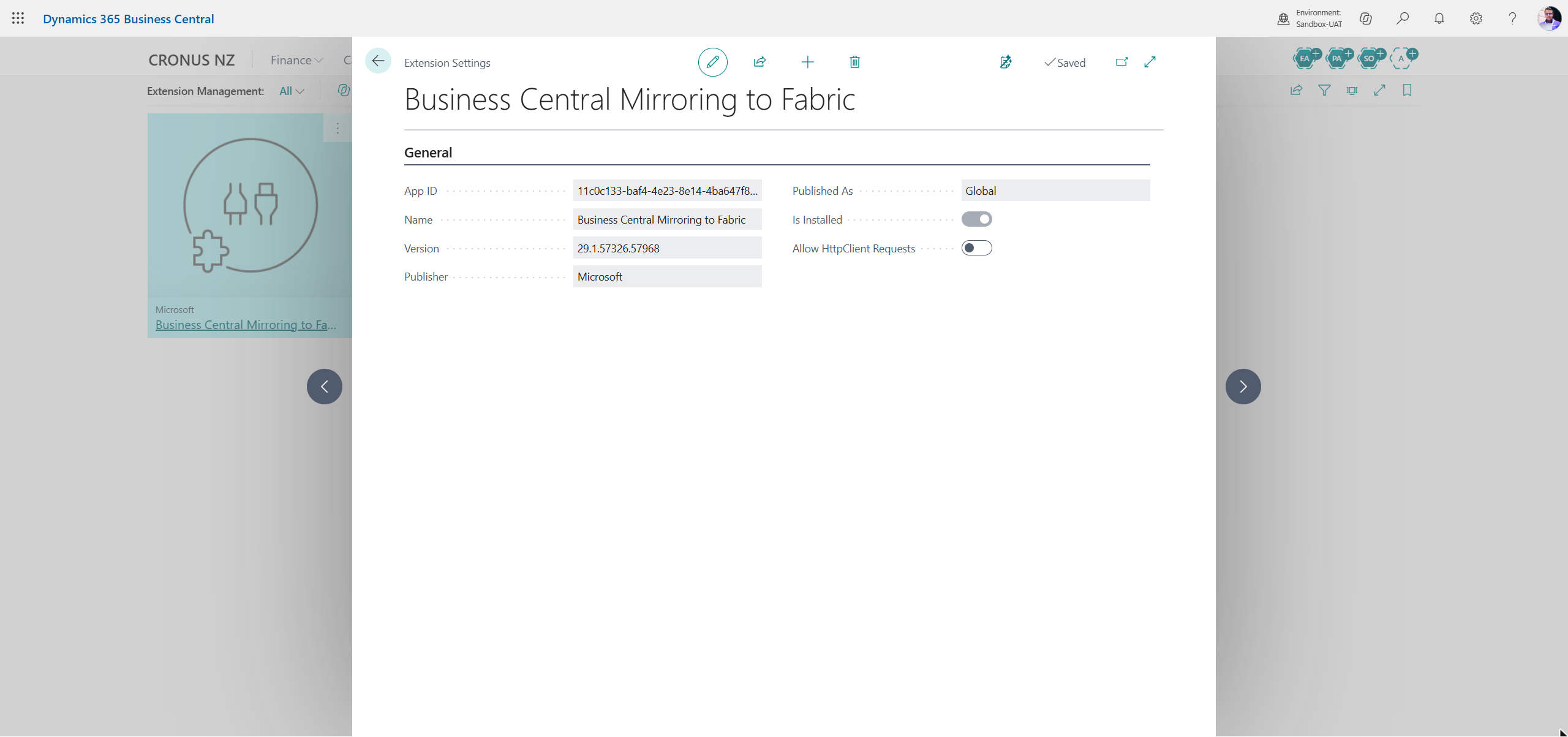
Business Central authenticates with a Microsoft-provided app called Dynamics 365 Business Central Fabric Export, and the extension itself, Business Central Mirroring to Fabric, was already installed on my 29.1 sandbox. Your job is simply to create a service principal for Microsoft’s app in your own tenant, then give it access to a Fabric workspace.
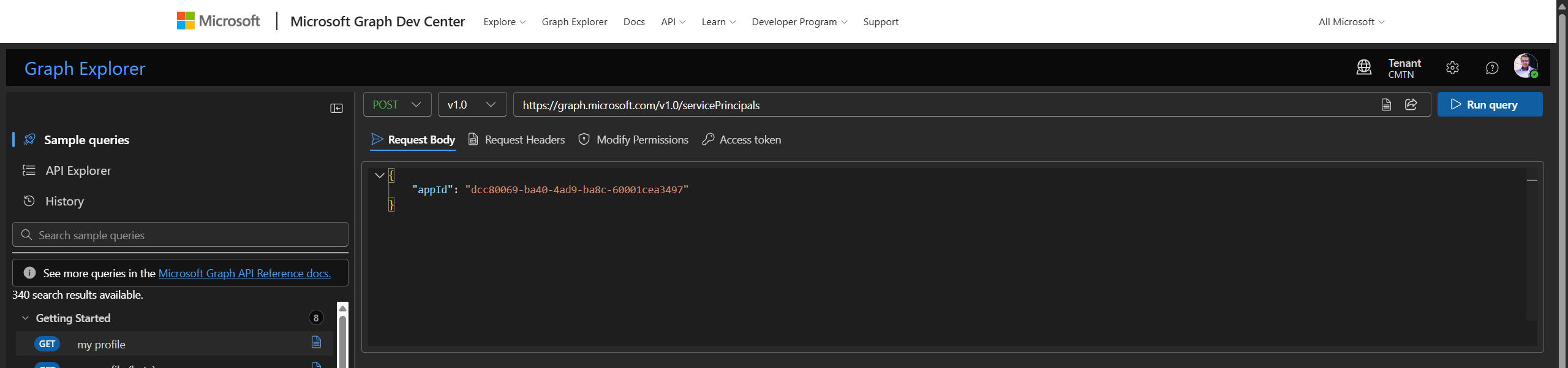
There is no button for that in the Entra portal, which surprised me. The app does not appear in the Entra app gallery, so Learn gives you Cloud Shell, Azure CLI, Graph PowerShell or Graph Explorer. I used Graph Explorer, which is a single POST to servicePrincipals with the app ID dcc80069-ba40-4ad9-ba8c-60001cea3497 in the body.
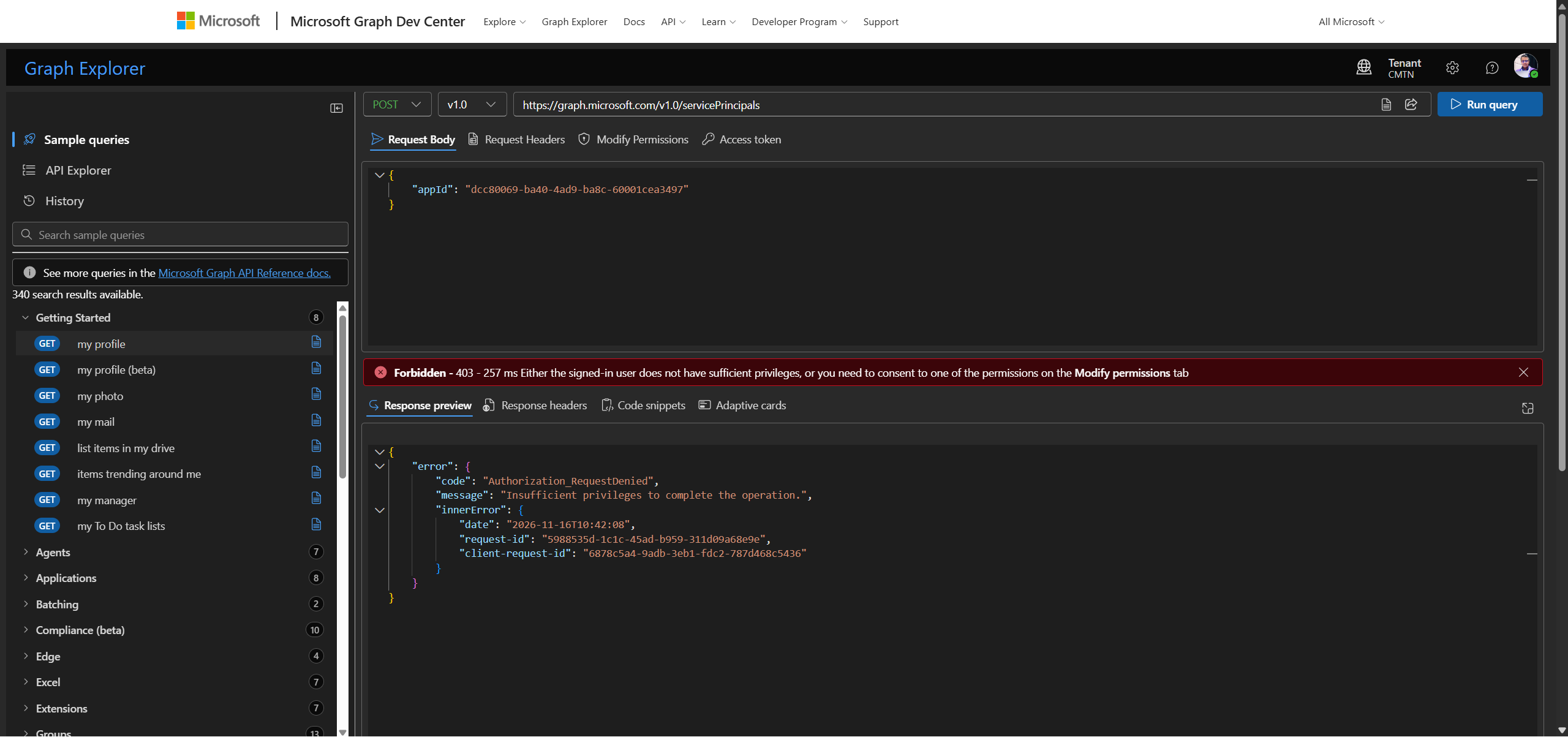
Here is the first gotcha. My tenant already had Directory.ReadWrite.All consented in Graph Explorer, and the request still came back 403. It only worked after I consented to Application.ReadWrite.All on the Modify permissions tab, exactly as the Learn steps say, so do not skip that step because you think you already have enough.
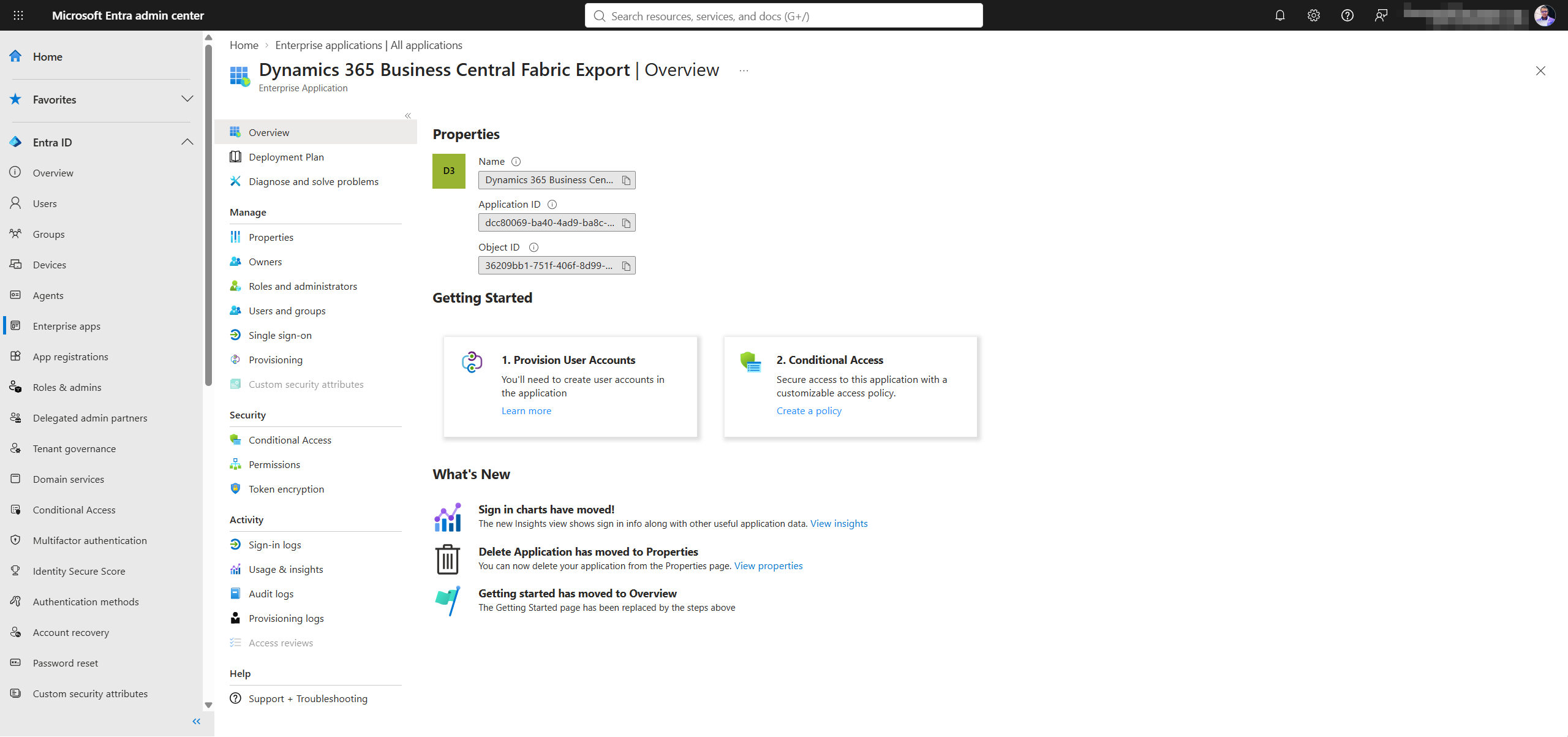
The id in the 201 response is the Object ID, and that is the Principal ID Business Central asks for. The new enterprise app then shows up in Entra with both IDs side by side.
A workspace and an empty mirrored database
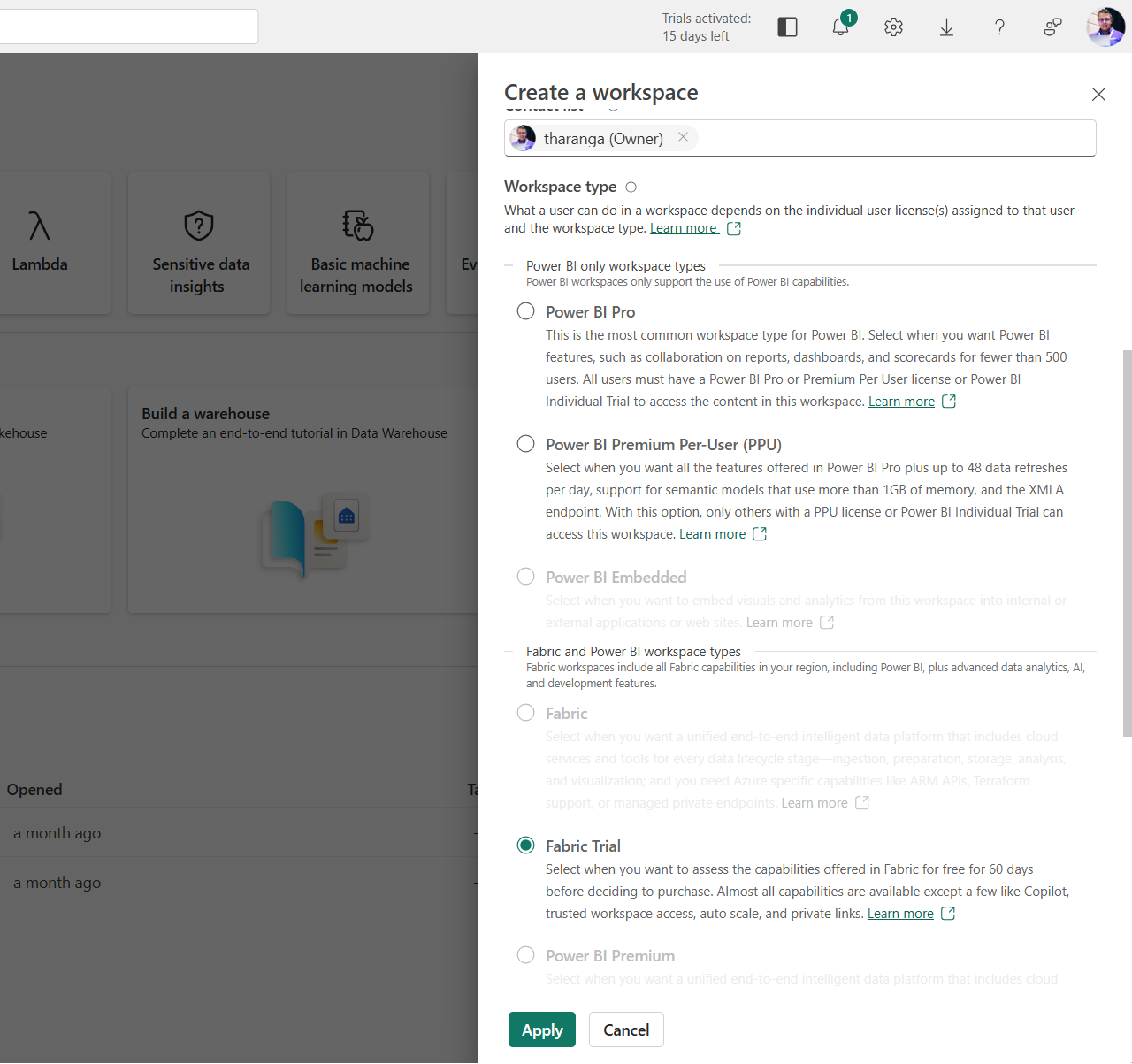
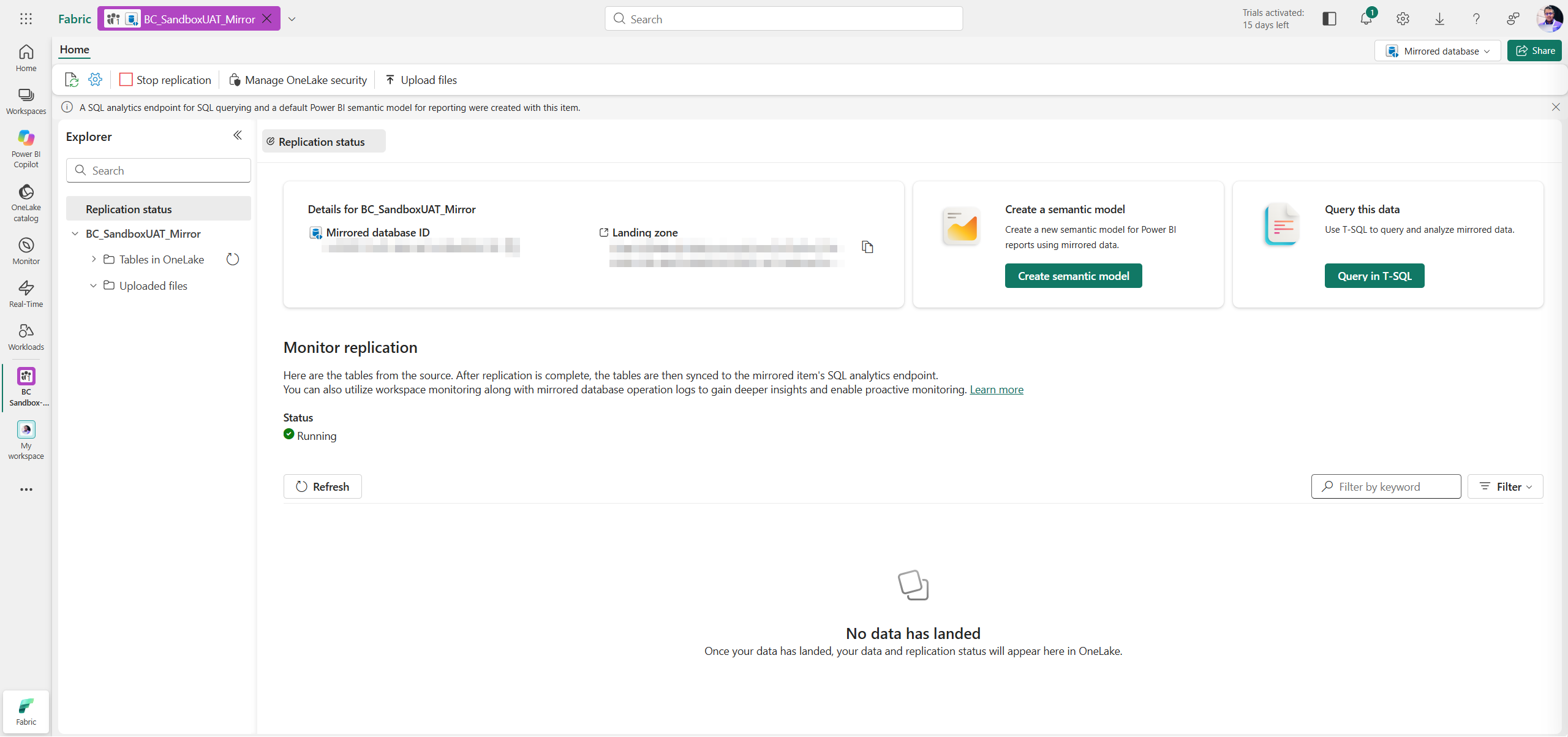
On the Fabric side you need a workspace on Fabric capacity, and the trial works fine. Inside it, create a Mirrored database item and leave it empty, because Business Central fills it later through open mirroring.
The guide in Business Central
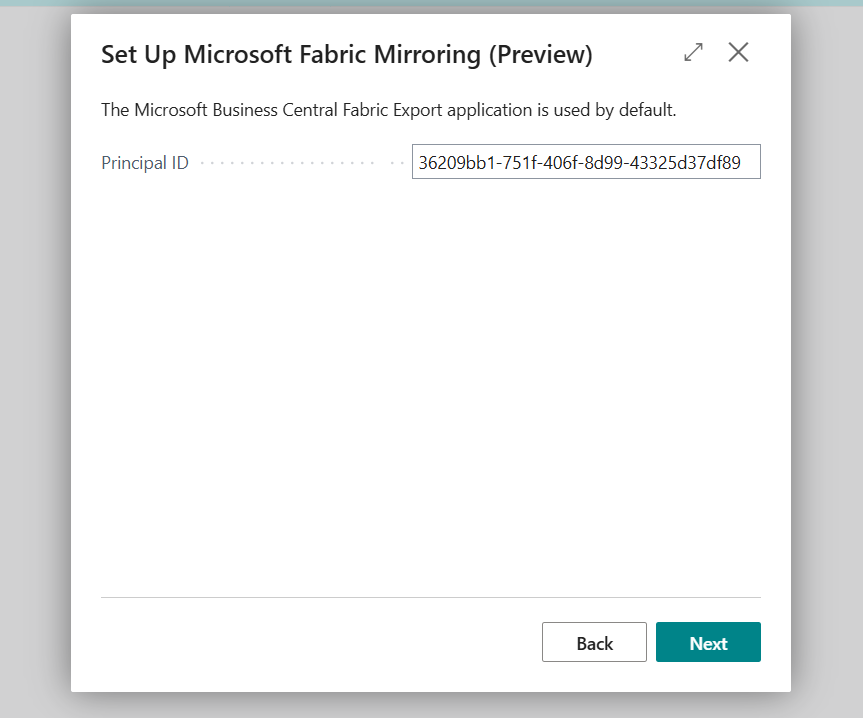
Search for Assisted Setup and run Connect to Microsoft Fabric (Preview). The guide asks for the Principal ID, then the workspace, then the database, and both lookups talk to Fabric directly. Business Central will also ask whether the System Application can call an external service, which is worth knowing before you show this to a customer.
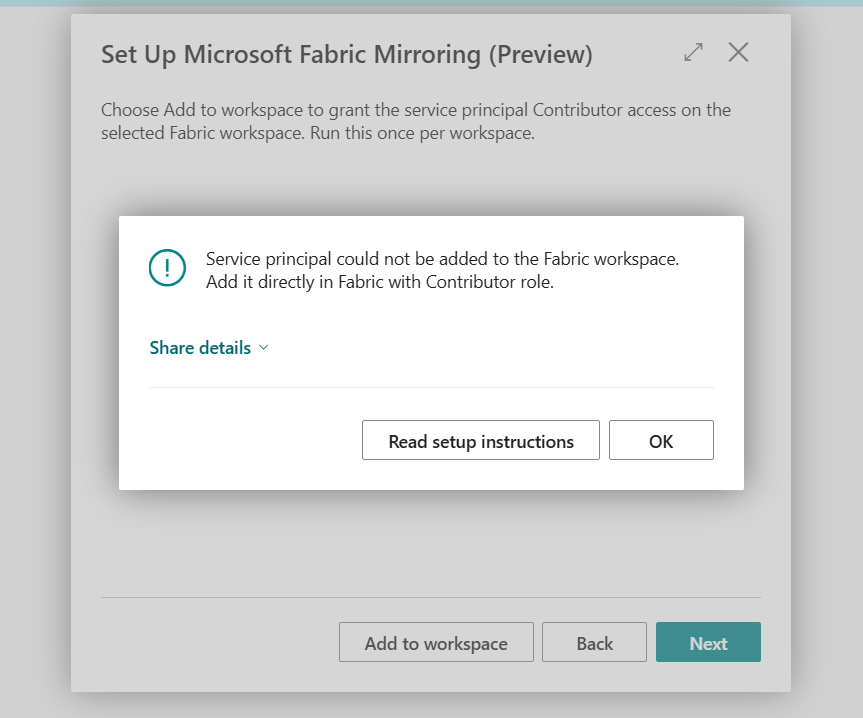
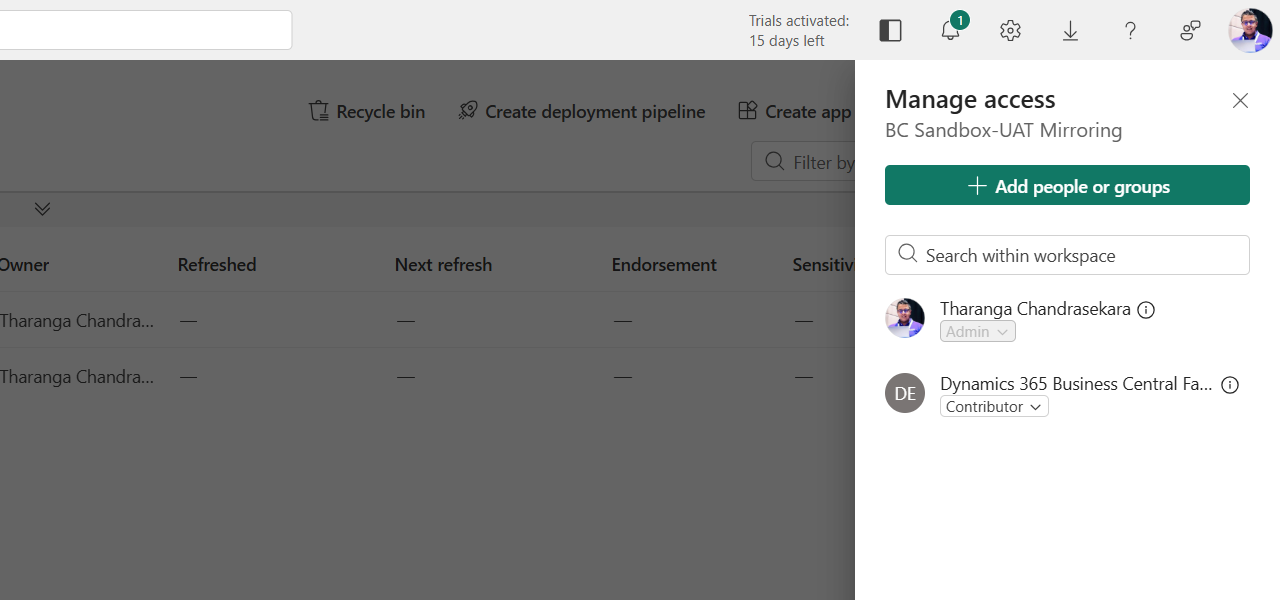
The second gotcha is Add to workspace. It failed for me, and the copied error details explain why: “Failed to acquire a Microsoft Fabric API token.” Learn has a fallback for exactly this, so I went to Manage access in Fabric and added the enterprise app as Contributor myself.
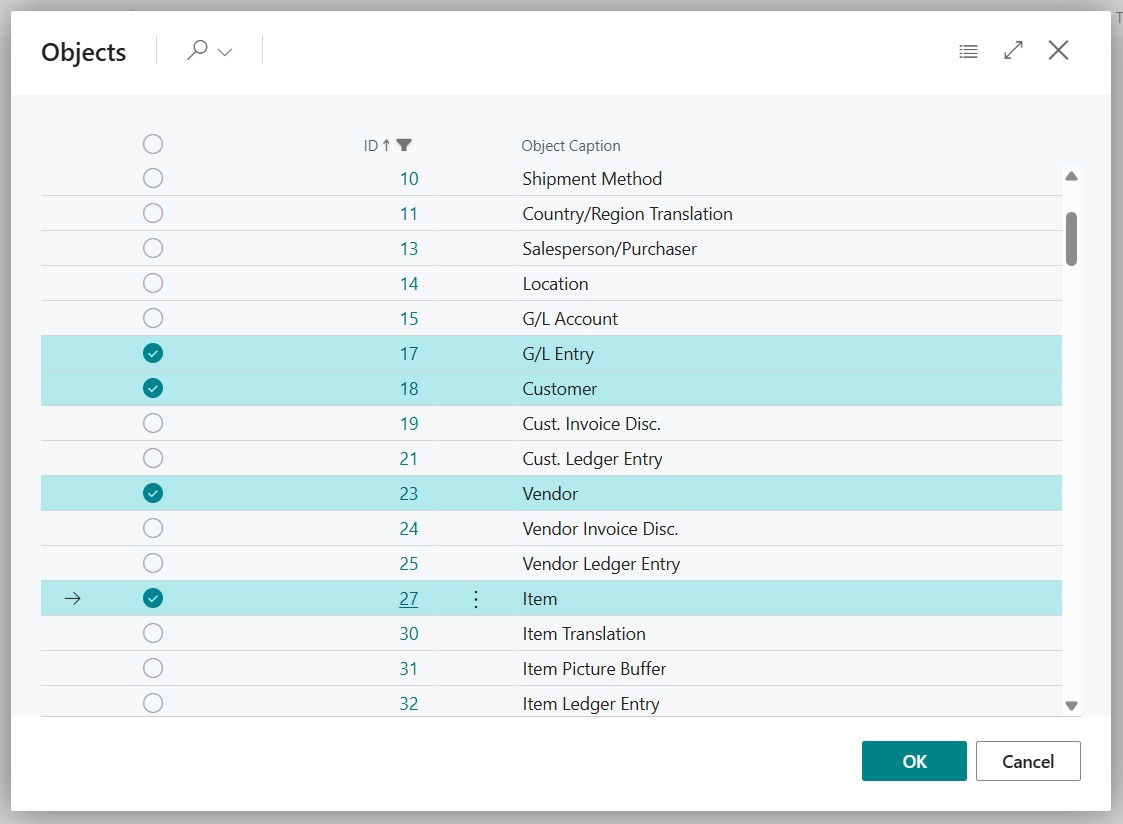
After that it is straightforward. Connect to Fabric runs in the background, then you pick your companies and tables. I kept it small with CRONUS NZ and four tables: G/L Entry, Customer, Vendor and Item.
Finish does not start anything
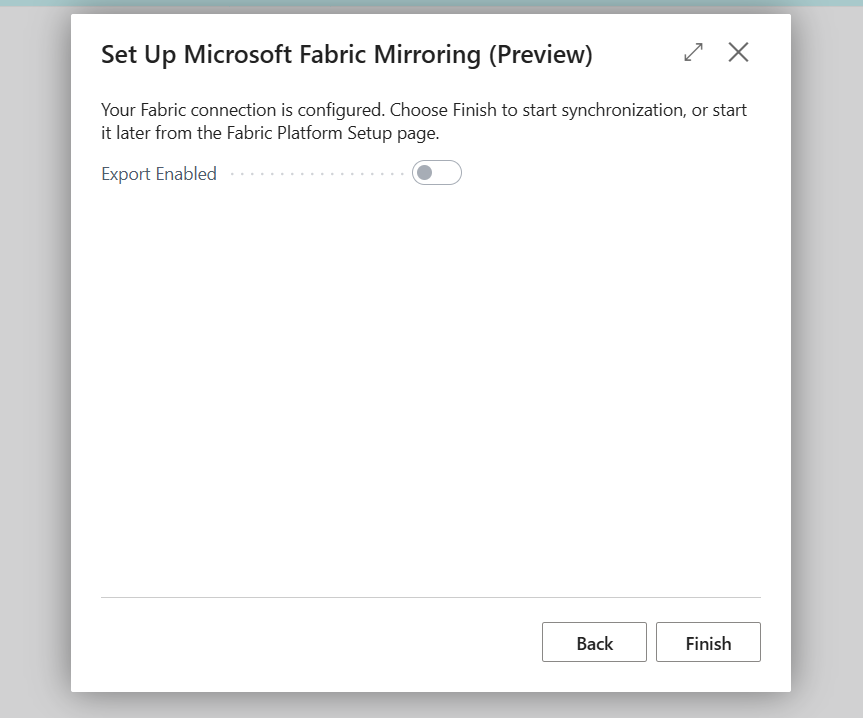
The third gotcha is the last page of the guide. It tells you to choose Finish to start synchronization, but Learn says the opposite, and Learn is right. After Finish, Setup Complete turned on within a minute, but Export Enabled stayed off.
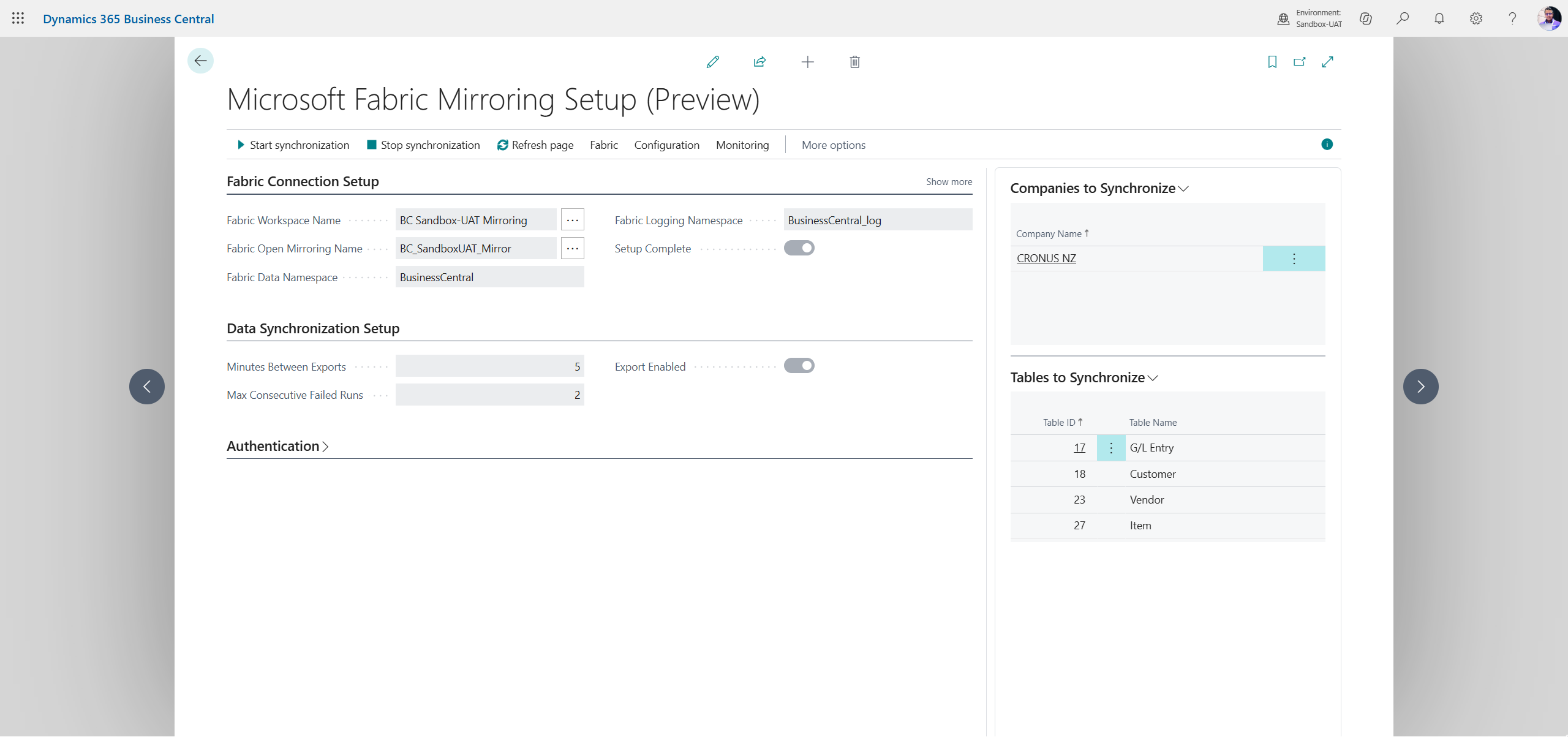
Open Microsoft Fabric Mirroring Setup (Preview) and select Start synchronization yourself. Only then did Export Enabled switch on.
First data
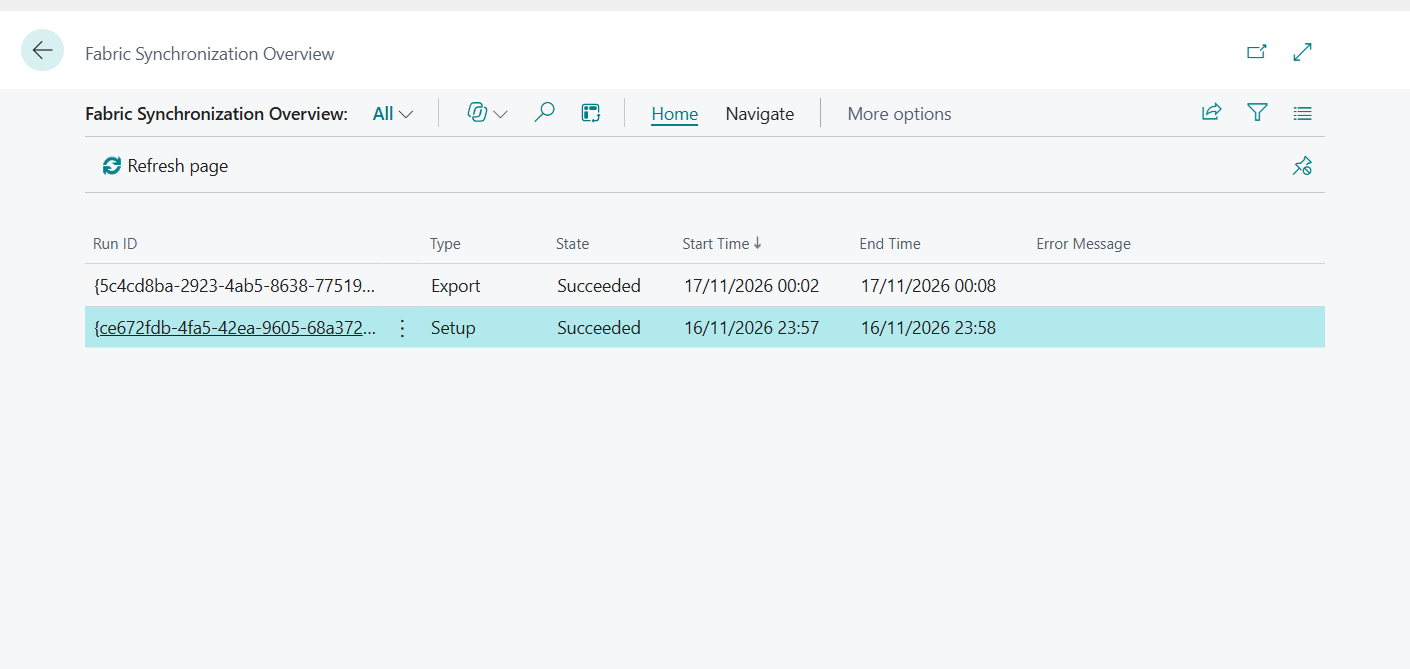
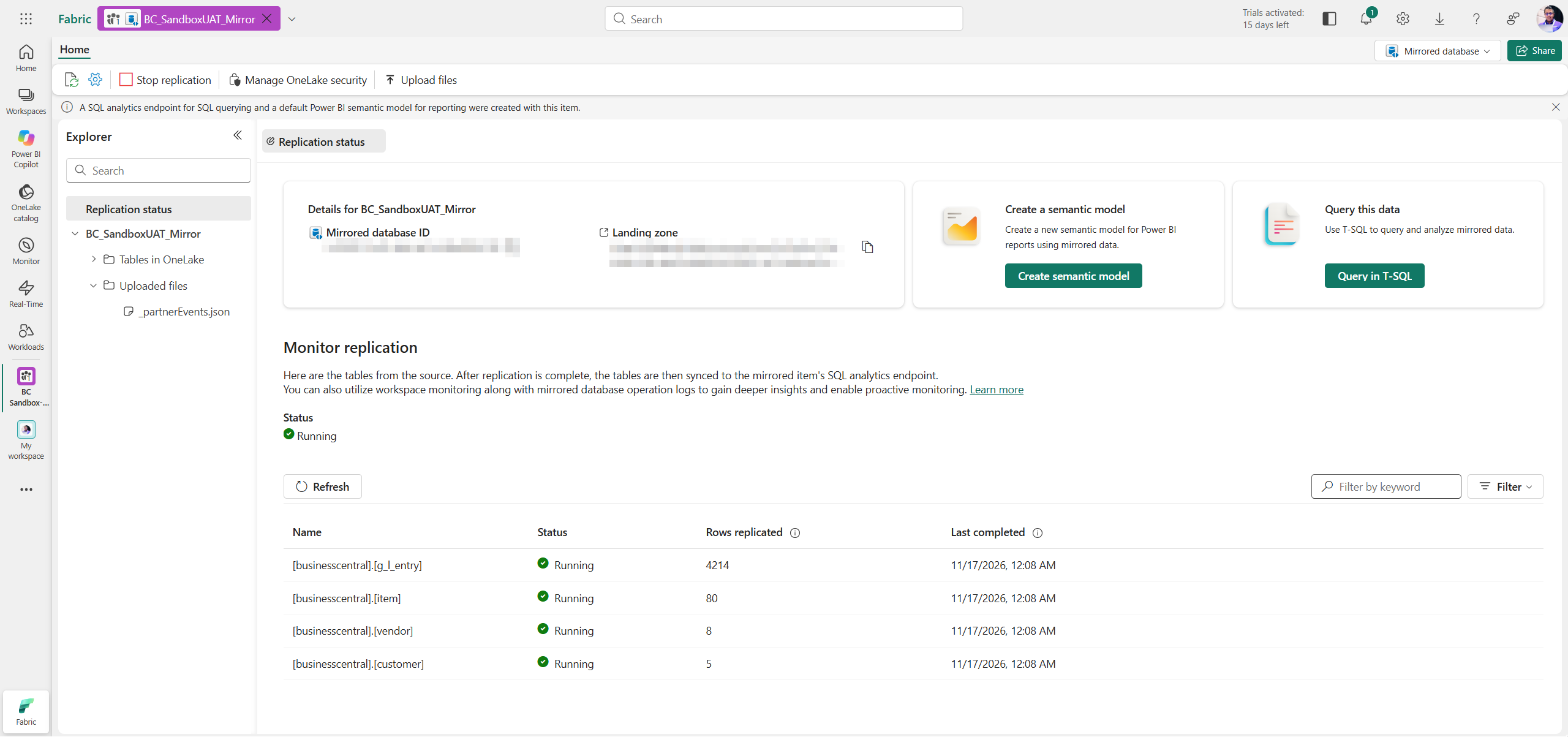
The first export run took about six minutes for four tables, and Fabric Synchronization Overview recorded it as Succeeded. A few minutes later the mirrored database showed all four tables replicating, with 4,214 rows in G/L Entry.
Overall it is a clean setup. No app registration, no secrets to rotate, and a first-party app that was already waiting on my sandbox. The rough edges left are small ones, and all three have a clear workaround.
If you have a 29.1 sandbox, this is the moment to try it. Start with the Learn setup guide, keep the table list short, and check Export Enabled before you go looking for your data.